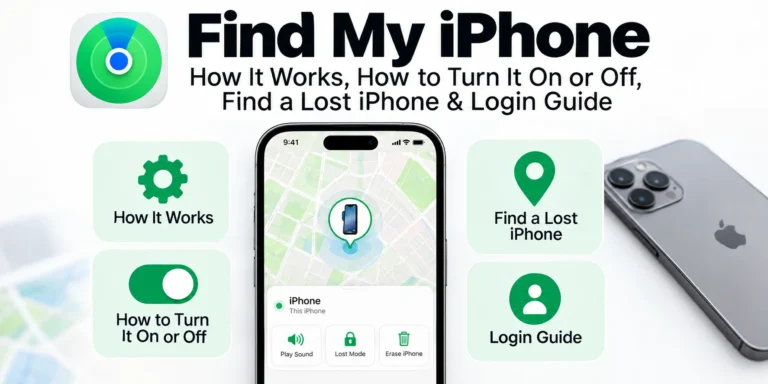
Losing an iPhone can be stressful, but Apple’s Find My feature is designed to help you locate, protect, and recover your device. Whether your phone is misplaced at home or lost while traveling, Find My lets you view its location, play a sound, enable Lost Mode, or remotely erase your data if necessary. Apple’s Find My service also includes Activation Lock, which helps prevent someone else from using your device if it’s lost or stolen.
For this guide, we reviewed Apple’s official Find My documentation and compared it with common questions shared by independent Apple repair technicians and experienced iPhone users. The goal is to provide clear, practical answers without unnecessary technical jargon.
What Is Find My iPhone?
Find My iPhone is part of Apple’s Find My app, available on iPhone, iPad, Mac, Apple Watch, and through iCloud on the web.
It helps you:
- Locate a lost iPhone on a map.
- Play a sound to help find a nearby device.
- Put the phone into Lost Mode.
- Lock your device remotely.
- Display a custom message with your contact information.
- Erase personal data if recovery isn’t possible.
- Protect your device with Activation Lock.
Although many people still search for “Find My iPhone,” Apple now includes this feature inside the broader Find My app.
How Does Find My iPhone Work?
Find My uses your Apple Account together with your device’s location services to help you locate your iPhone.
If your phone is online, you’ll usually see its current location.
If it’s offline, Apple can often display its last known location. On supported devices with the Find My network enabled, nearby Apple devices can securely help update the location while protecting user privacy.
How to Turn On Find My iPhone
It’s best to enable Find My as soon as you set up a new iPhone.
Steps
- Open Settings.
- Tap your Apple Account at the top.
- Select Find My.
- Tap Find My iPhone.
- Turn on:
- Find My iPhone
- Find My Network
- Send Last Location
These options improve your chances of locating the device if it goes missing or the battery runs low.
Why Should You Leave Find My Enabled?
Many users consider turning it off, but leaving it enabled offers important security benefits.
With Find My turned on, you can:
- Recover a misplaced device.
- Lock your phone remotely.
- Erase sensitive information if needed.
- Prevent unauthorized activation through Activation Lock.
Because Activation Lock is enabled automatically when Find My is active, someone who finds or steals your iPhone cannot simply erase and reuse it without your Apple Account credentials.
Find My iPhone Login
Many people search for Find My iPhone login or iCloud Find My iPhone login.
There are two official ways to access the service:
Option 1: Find My App
If you own another Apple device, simply open the Find My app and sign in with your Apple Account if prompted.
Option 2: iCloud on the Web
If you don’t have another Apple device, you can sign in through Apple’s official Find My website using your Apple Account to locate your devices, mark them as lost, or erase them remotely.
Can You Find Your iPhone from Another Device?
Yes.
You don’t need the missing iPhone in your hands.
You can use:
- Another iPhone
- An iPad
- A Mac
- A Windows PC
- A Chromebook
- An Android phone through a web browser
Simply sign in to Apple’s official Find My service with your Apple Account to access your registered devices.
What Happens If Your iPhone Is Lost?
If your iPhone is missing, Apple recommends taking action as soon as possible.
You can:
- View its location.
- Play a sound if it’s nearby.
- Enable Lost Mode.
- Display a recovery message.
- Remotely erase your personal data if necessary.
Even after a remote erase, Activation Lock remains enabled, helping prevent someone else from setting up the device without your Apple Account password.
How to Turn Off Find My iPhone
There are times when you may need to turn off Find My, such as before selling, trading in, giving away, or sending your iPhone for repair.
Steps to Turn Off Find My
- Open Settings.
- Tap your Apple Account at the top.
- Select Find My.
- Tap Find My iPhone.
- Turn Find My iPhone off.
- Enter your Apple Account password to confirm.
Once disabled, Activation Lock is also turned off, allowing another person to activate the device after it has been erased.
Why Can’t I Turn Off Find My iPhone?
If the option is unavailable or won’t turn off, one of these situations is usually the cause:
- Your Apple Account password is incorrect.
- Stolen Device Protection or other security features require additional verification.
- Screen Time restrictions are preventing changes.
- Your device is managed by an organization.
If you’re preparing to sell your iPhone, make sure Find My is completely disabled before erasing the device.
How to Turn Off Find My iPhone from a Computer
If you no longer have your iPhone, you can still remove it from your Apple Account.
The general process is:
- Sign in to Apple’s Find My service in your browser.
- Select your iPhone.
- If necessary, erase the device first.
- Choose Remove This Device after the erase is complete.
Removing the device also removes Activation Lock, allowing the next owner to activate it.
What Is Lost Mode?
Lost Mode is one of the most useful Find My features.
When enabled, your iPhone:
- Locks with your passcode.
- Suspends Apple Pay cards.
- Displays a custom recovery message.
- Shows your contact phone number if you choose.
- Continues reporting its location whenever possible.
Apple recommends enabling Lost Mode as soon as you realize your iPhone is missing.
How to Find a Lost iPhone
If your iPhone disappears, don’t panic.
Open the Find My app or sign in through Apple’s Find My website.
After selecting your device, you can:
- View its current or last known location.
- Play a sound.
- Get directions.
- Mark it as Lost.
- Erase the device if recovery isn’t possible.
If Find My wasn’t enabled before the device was lost, remote tracking won’t be available.
Can You Use Find My on Android?
Yes—but not through an Android app.
If you’re using an Android phone, you can open a supported web browser and sign in to Apple’s Find My website with your Apple Account to access your devices. This is useful if you don’t have another Apple device nearby.
Can You Find a Family Member’s iPhone?
If your family uses Family Sharing and location sharing is enabled, you may be able to help locate a family member’s missing iPhone using the Find My app.
This can be especially helpful if a child or another family member misplaces their device.
What Is Activation Lock?
Activation Lock is a built-in security feature that works with Find My.
Once Find My is enabled:
- The device becomes linked to your Apple Account.
- Another person cannot reactivate it without your credentials.
- Even after a remote erase, Activation Lock remains in place until you remove the device from your account.
This is one of Apple’s strongest theft-deterrent features.
How Accurate Is Find My iPhone?
One of the most common questions is whether Find My shows your iPhone’s exact location.
In most situations, Find My is very accurate when your iPhone has a GPS signal, Wi-Fi, or a cellular connection. If the device is offline, Apple’s Find My network can estimate its location using nearby Apple devices that securely relay encrypted location information. Accuracy depends on factors such as nearby Apple devices, buildings, and the surrounding environment.
Does Find My Work Without Internet?
Yes—in many cases.
If your iPhone is offline but has Find My Network enabled, nearby Apple devices can anonymously detect its Bluetooth signal and securely report an approximate location to your Apple Account. This allows many lost devices to appear in Find My even when they aren’t connected to Wi-Fi or cellular data.
What Is Find My Network?
Find My Network is Apple’s crowdsourced device-finding system.
Instead of relying only on your own internet connection, it uses hundreds of millions of Apple devices around the world.
When another Apple device comes within Bluetooth range of your lost iPhone, it can securely send an encrypted location update. Apple states that this process is anonymous and end-to-end encrypted, meaning neither the nearby device owner nor Apple can view your location information.
Find My Friends and Location Sharing
The Find My app also lets you share your location with family and trusted friends.
After sharing your location, you can:
- View each other’s live location.
- Receive arrival or departure notifications.
- Stop sharing at any time.
- Manage who can see your location.
Location sharing is optional, and you remain in control of who has access.
Why Is Find My iPhone Not Working?
If Find My isn’t showing your iPhone, there are several possible reasons.
Find My is Disabled
The feature must be turned on before the device is lost.
Location Services Are Off
Find My relies on Location Services to determine your device’s position.
Apple Account Issue
Your device must be signed in with the correct Apple Account associated with Find My.
No Recent Location Available
If the battery has completely drained or the device has been offline for an extended period without being detected by nearby Apple devices, you may only see its last known location.
Tips to Improve Your Chances of Recovering a Lost iPhone
Before you ever lose your iPhone, make sure you:
- Turn on Find My iPhone.
- Enable Find My Network.
- Enable Send Last Location.
- Keep your Apple Account information up to date.
- Use a secure device passcode.
These settings can significantly improve your chances of locating your device if it goes missing.
Is Find My Private?
Apple designed Find My with privacy in mind.
According to Apple, location reports shared through the Find My network are encrypted end-to-end. Nearby Apple devices helping locate your iPhone cannot identify you, and Apple cannot read the encrypted location data.
Common Mistakes to Avoid
Many users unknowingly reduce their chances of recovering a lost device by making simple mistakes.
Avoid these common issues:
- Turning off Find My after setting up your iPhone.
- Disabling Find My Network.
- Forgetting your Apple Account password.
- Removing the device from your account before it has been recovered.
- Waiting too long before enabling Lost Mode.
Taking action quickly can improve the likelihood of recovering your iPhone.
Frequently Asked Questions
Can I Find My iPhone If It’s Turned Off?
Yes, in many cases.
On supported iPhone models with Find My Network enabled, your device may still be located even after it’s powered off. Apple uses nearby Apple devices to securely and anonymously relay your iPhone’s approximate location to your Apple Account.
Can I Find My iPhone Without the Find My Feature Enabled?
Unfortunately, no.
If Find My was never turned on before your iPhone was lost, Apple doesn’t provide a way to remotely locate, lock, or erase the device. That’s why Apple recommends enabling Find My during device setup.
Can Someone Track Me Through Find My?
Only if you have chosen to share your location with them.
You control location sharing and can stop sharing at any time through the Find My app. Apple also protects location information using end-to-end encryption for the Find My network.
How Do I Remove Find My Before Selling My iPhone?
Before selling, trading in, or giving away your iPhone:
- Back up your data.
- Turn off Find My.
- Sign out of your Apple Account.
- Erase all content and settings.
- Remove the device from your Apple Account if you no longer have it.
Completing these steps removes Activation Lock so the new owner can activate the device.
Can I Use Find My from Any Computer?
Yes.
You can sign in to Apple’s official Find Devices service from most modern web browsers to:
- Locate your iPhone.
- Play a sound.
- Enable Lost Mode.
- Erase the device remotely.
- Remove a device from your account when appropriate.
Is Find My Free?
Yes.
Find My is included with your Apple Account and supported Apple devices. There is no separate subscription required to use its core features.
Best Practices for Using Find My
To keep your iPhone protected, follow these recommendations:
- Keep Find My iPhone enabled.
- Turn on Find My Network.
- Enable Send Last Location.
- Use a strong device passcode.
- Protect your Apple Account with two-factor authentication.
- Review who has access to your shared location from time to time.
These simple steps can make recovering a lost device much easier.
Final Thoughts
Find My is one of Apple’s most valuable built-in security features. Whether you’ve misplaced your iPhone, left it behind while traveling, or need to prepare it for sale, the app provides tools to locate, secure, or erase your device while helping protect your personal information.
For this guide, we reviewed Apple’s official documentation and considered common questions raised by independent Apple repair professionals and experienced iPhone users. The result is a practical overview of how Find My works, how to manage it, and what to do if your iPhone is ever lost.
With Find My enabled before a problem occurs, you’ll be in the best position to locate your device quickly, protect your data, and reduce the risk of unauthorized access.