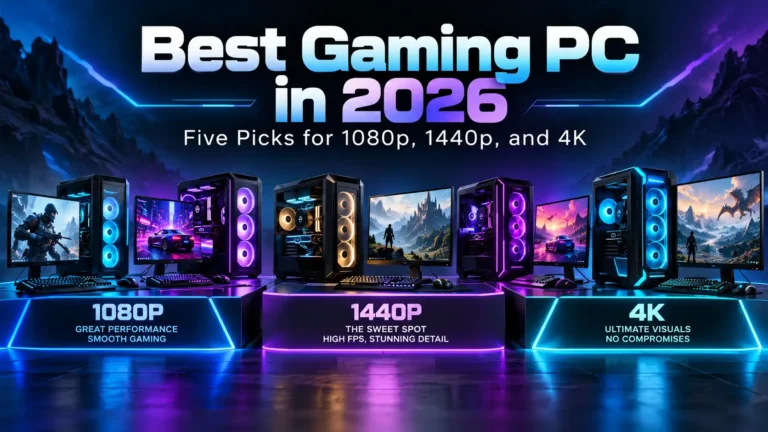
A good gaming PC should fit the games you play, the screen you own, and the money you can spend. A costly processor or a case full of lights does not tell you how well a computer will run your favorite game.
My balanced value pick from the configurations below is the CyberPowerPC Gaming PC Master 9400. For a budget near $1,000, the ABS Flavonius Aqua is a more sensible starting point. Buyers focused on 4K should compare the RTX 5080 options.
The recommendations below are based on listed hardware, prices, and features. Check game-specific benchmarks before buying, especially if you want high frame rates or demanding graphics settings.
U.S. prices checked October 9, 2026. Taxes, shipping, coupons, and custom upgrades can change the final cost.
Which Gaming PCs Should You Consider?
Compare the exact configuration. A product name can cover several different computers.
| Gaming PC | Why consider it? | Graphics card | RAM / SSD storage | Listed price |
|---|---|---|---|---|
| ABS Flavonius Aqua G1A45N46R1 | Budget option for 1080p | RTX 5060, 8GB | 16GB DDR4 / 1TB | $999.99 |
| CyberPowerPC Gaming PC Master 9400 | Balanced AMD value | RX 9070 XT, 16GB | 32GB DDR5 / 2TB | $2,399 |
| NZXT Player Two | NVIDIA setup with liquid cooling | RTX 5070, 12GB | 32GB DDR5 / 2TB | $2,649 |
| CyberPowerPC Gaming PC Master 9500 | RTX 5080 option for 4K | RTX 5080, 16GB | 32GB DDR5 / 2TB | $3,239 |
| Corsair Vengeance a8200, CS-9060029-NA | Gaming plus demanding creative work | RTX 5080, 16GB | 64GB DDR5 / 4TB | $4,999.99 |
Prices and specifications apply to the configurations shown above. Resolution labels are shopping recommendations; they do not promise a fixed frame rate in every game.
What Makes Each Gaming PC Worth a Look?
ABS Flavonius Aqua: A Practical Budget Pick
The ABS Flavonius Aqua G1A45N46R1 pairs an Intel Core i5-14400F with an RTX 5060. Its listed configuration includes 16GB of DDR4 memory, a 1TB SSD, Wi-Fi, and Windows 11.
At $999.99, it is my budget pick for buyers starting with a 1080p screen. The retailer lists one year of parts and labor coverage.
The main trade-offs are the older CPU platform, DDR4 memory, and the graphics card’s 8GB of video memory. Check benchmarks for newer games and heavy texture settings. Also compare the price of a 32GB configuration before paying for a separate memory upgrade.
CyberPowerPC Master 9400: My Balanced Value Pick
The Gaming PC Master 9400 combines a Ryzen 7 9800X3D with the RX 9070 XT. At $2,399, its 32GB of RAM and 2TB SSD make a well-rounded package on paper.
I would shortlist it for 1440p gaming. Check ray-tracing results for your games before choosing between this and an NVIDIA system.
NZXT Player Two: An Option for NVIDIA Buyers
The NZXT Player Two lists an Intel Core Ultra 7 270K Plus, RTX 5070, 32GB of DDR5 memory, and a 2TB SSD.
Its $2,649 configuration also includes an H5 Flow case, a Kraken Plus 240 V2 liquid cooler, and a two-year warranty.
It deserves a look if you want an assembled NVIDIA system with that case and cooling setup. However, compare less costly RTX 5070 desktops before ordering. The extras need to matter to you.
Check your editing or streaming software’s hardware guidance if you plan to use the PC for content work as well.
CyberPowerPC Master 9500: A Stronger 4K Shortlist Option
The Gaming PC Master 9500 pairs the Ryzen 7 9800X3D with an RTX 5080. The listed $3,239 build includes 32GB of DDR5 memory and a 2TB SSD.
I would compare this configuration for a 4K setup. Confirm cooling, power supply, and delivery details before ordering.
Corsair Vengeance a8200: For Gaming and Heavier Work
The Corsair Vengeance a8200, CS-9060029-NA lists a Ryzen 9 9950X3D, RTX 5080, 64GB of DDR5 memory, and two 2TB SSDs. Corsair lists a two-year warranty.
At $4,999.99, it costs much more than the other RTX 5080 build here. I would consider it for a mix of gaming and demanding creative work.
For gaming alone, compare cheaper RTX 5080 systems first. The extra memory, storage, and processor must serve a real need to justify the premium.
Should You Buy for 1080p, 1440p, or 4K?
Your screen helps set the right budget.
For 1080p, Keep the Whole Setup Affordable
A 1080p screen is a sensible place to start when funds are tight. The ABS configuration above is worth comparing with other RTX 5060 builds.
Competitive games and demanding story games can have very different needs. A claim that a PC runs one game at high frame rates tells you little about another.
Choose your games and settings before choosing your hardware.
For 1440p, Compare Graphics Performance Closely
For a new setup with a larger budget, 1440p is my suggested starting point. It gives you more detail than 1080p without making 4K the default target.
Compare systems with GPUs such as the RX 9070 XT, RTX 5070, or RTX 5070 Ti. They are different cards, and the price should reflect that.
NVIDIA lists 12GB of video memory for the RTX 5070 and 16GB for the RTX 5070 Ti. Read the full model name when comparing offers.
For 4K, Budget for the Graphics Card and Screen
A 4K setup needs careful planning. Check benchmarks at your chosen settings, including ray tracing if you want to use it.
An RTX 5080 system is worth shortlisting, but it does not guarantee maximum settings and high frame rates in every game.
Keep money for a suitable monitor. A costly tower is only one part of the setup.
Which Parts Matter Most in a Gaming PC?
Graphics Card
For demanding games, give the graphics card close attention. Compare tests at the resolution you will use.
Video memory, also called VRAM, is separate from system RAM. A listing with 32GB of system memory does not mean the graphics card has 32GB.
More VRAM alone also does not prove that one card is faster.
Processor
Check the full CPU model. Labels such as “Core i7” or “Ryzen 7” leave out the generation and exact chip.
AMD’s X3D processors are worth considering for a gaming-focused build. However, judge the complete system. Paying for a premium CPU can leave less money for the GPU, monitor, or storage.
Memory
My shopping target for a new midrange PC is 32GB of RAM. It leaves useful room for games, browser tabs, and other tasks.
A 16GB system can still be a reasonable budget choice. Check your games’ requirements and the cost of adding memory later.
Do not pay for 64GB solely because the number looks impressive. Choose it when your games or work need it.
Storage
I would aim for a 1TB SSD in a budget build and 2TB if you keep several large games installed.
Ask whether a second drive can be added. Keep some space free for updates and new downloads.
Cooling and Power Supply
Ask for the power supply’s model, capacity, and connectors. A wattage number alone does not tell you everything about the unit.
Check reviews of the exact case and cooling configuration. Noise and temperature can vary between builds that use the same CPU and GPU.
Liquid cooling is an option, rather than a requirement for every gaming PC.
How Should You Read Gaming Benchmarks?
Look for results that match your games, screen resolution, and graphics settings.
Check whether the test uses:
- Native resolution or upscaling.
- Ray tracing.
- Frame generation.
- The same GPU and a comparable CPU.
- Average frame rates and results showing brief slowdowns.
NVIDIA’s DLSS guidance explains that upscaling can build higher-resolution images from lower-resolution input. Frame generation adds generated frames.
Both can be useful. Read the test settings carefully, since the displayed frame-rate result may include those features.
Compare like-for-like tests before using a large FPS number to justify a purchase.
Is a Prebuilt Gaming PC Better Than Building One?
A prebuilt PC is useful when you want assembly, setup, and system support handled by a seller.
Building your own gives you control over the parts. A custom builder offers another route: you choose more of the configuration while someone else assembles it.
Intel’s guide to prebuilt and custom PCs explains those trade-offs.
Compare the full cost before deciding. A DIY price should include the operating system, cooling, shipping, and any parts missing from the first estimate.
Neither route wins every price comparison. Current offers and your comfort with repairs matter.
What Should You Check Before Placing an Order?
Get clear answers to these questions:
- What exact CPU, GPU, motherboard, and power supply will ship?
- How is the memory installed, and are spare slots available?
- Can you add another SSD?
- Will a future graphics card fit the case and power supply?
- Are Wi-Fi, Windows, and the required cables included?
- Who pays shipping if the PC needs warranty service?
- What is the return deadline, and are there fees?
- Is the PC ready to ship or built after ordering?
Save the final configuration and order confirmation. Custom changes can alter both price and delivery time.
Common Questions About the Best Gaming PC
Can You Get a Good Gaming PC for About $1,000?
Yes, depending on your games and settings. The ABS model in this guide was listed at $999.99. Treat it as a budget starting point and check performance for your own games.
Is a Gaming Desktop Better Than a Gaming Laptop?
A desktop is worth considering if you play at a desk and want room for upgrades. Choose a laptop when portability matters. Compare the exact machines, since a shared GPU family name does not guarantee equal performance.
How Long Will a Gaming PC Last?
There is no fixed lifespan. Your future games, preferred settings, maintenance, and upgrade options all affect how long it meets your needs.
Choose the Gaming PC You Will Actually Use
Start with your games, monitor, and total budget. Then compare exact configurations, including the parts that sellers place lower down the page.
The budget ABS and balanced Master 9400 are sensible starting points for different spending limits. The RTX 5080 builds deserve attention when 4K or demanding creative work is part of your plan.
Before paying, confirm game performance, cooling, warranty terms, and the final delivered price. The best gaming PC is the one that meets your needs at a cost you can justify.